


Draw & Paint - Classic & Pixel
4.132.00 Reviews
App Specs
- Version
- 1.12.1
- Updated On
- License
- Free
- Downloads
- 1,000,000+
- Developer
- Neli Creative
- Categories
- Art & Design
- Platform
- Android
Screenshots

 Analysis by AppCompare
I judge a drawing app partly by how quickly I can get an idea onto the screen, and partly by whether it still feels comfortable after the first few minutes. Draw & Paint - Classic & Pixel aims at both casual sketching and more deliberate work, with two distinct ways to approach a canvas. That makes it appealing if you enjoy switching between loose, brush-based drawing and carefully placed pixels, though the experience is best suited to personal art rather than a demanding professional workflow.
Finding your way around the canvas
The first impression is approachable: the interface doesn’t seem to confront a new user with every option at once. I like that for quick doodles, because the useful choice is often simply to start drawing rather than spend time arranging a workspace. The app is in the art and design category, and Neli Creative has given it a clear central purpose: making pictures directly on a mobile device.
That simplicity has a trade-off. Anyone who has never used digital art tools may still need a little time to understand how a brush setting, a layer, or the pixel grid affects the result. I’d begin with a small test sketch rather than a finished piece: try a few brush widths, change opacity, and make a second layer before committing to a longer drawing. That short warm-up is a practical way to learn the controls without risking an idea you care about.
Making the controls work for you
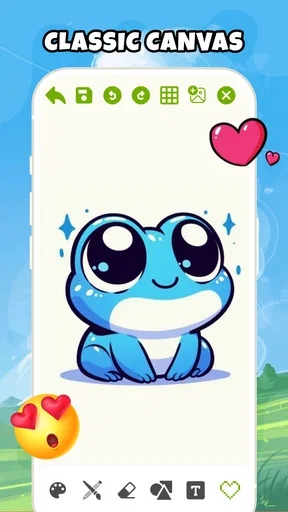
In classic mode, the choice of brushes and pencils gives you room to adjust how marks feel. Thickness and opacity matter for more than style: a broad mark can be easier to see on a small screen, while lower opacity can help build up a soft effect gradually. I find it useful to choose a deliberately simple setup for an initial sketch, then change tools only when the drawing calls for it. Constantly browsing settings can interrupt the flow, especially when working with fingers rather than a stylus.
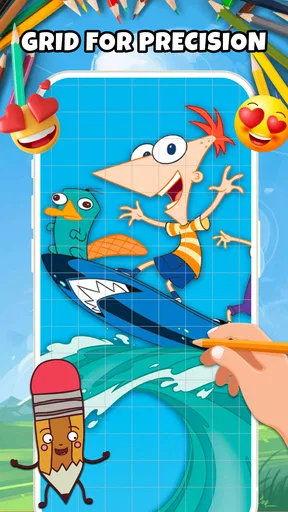
Pixel mode asks for a different kind of patience. The grid helps keep marks aligned, which is useful for sprites, small icons, and blocky patterns, but it also means a tiny placement decision can shape the whole image. I’d zoom in on the basic silhouette first and settle on a limited set of colors before adding little details. That approach keeps a small design readable instead of turning it into a crowded patchwork.
Two styles, two different workflows
The appeal of having classic and pixel approaches in one app is not just variety. It gives me a simple way to test which visual language suits an idea. A loose character concept may be quicker to explore with a pencil-like brush; if I want it to feel like a retro game sprite, I can instead think in grid-sized blocks. These modes are better treated as separate workflows than as interchangeable filters, because smooth strokes and precise pixel placement call for different decisions.
Layers are especially handy when I want to keep a rough sketch apart from the cleaner marks above it. For example, I can block out a character’s pose on one layer and work on its outline or color on another, making changes less intimidating. The useful habit is to name or organize layers in a way that makes sense to you as the image grows, if the available controls allow it; a stack of unexplained layers can become confusing just as quickly as a crowded canvas.
Worth Reading Before You Choose

Flipboard Shows What News Apps Must Do Beyond the Feed

Switching to Android Auto Means Rethinking Your Driving Routine

Google Calendar Makes a Crowded Week Easier to Manage

Ludo King Makes the Most of the Minutes Between Plans

Baby Panda World Brings Quick Play to Modern Phones, but Its Game Library Feels Busy

ESPN’s Live Game View Makes Following Close Games Easier
When a quick drawing fits the day
For an everyday use, imagine noticing an interesting shop sign while waiting for a friend. I could open the app, sketch its shapes in classic mode, and later turn the same idea into a compact pixel-style study. The automatic saving described in the app’s experience is reassuring during short sessions, while time-lapse recording offers a way to revisit the process or share how a drawing developed. I would still save a finished piece deliberately before switching devices or relying on it for anything important.
Sharing and file choices make the app more useful than a throwaway doodle pad, but the best workflow depends on what you plan to do with the image. For a social post or a personal reference, a straightforward export is usually enough. If the artwork needs to fit a precise print size, remain editable in a separate desktop program, or meet a client’s production requirements, I’d test the output and handoff early rather than discover a mismatch at the end.
How it compares with other drawing apps
Compared with a basic notes app or phone markup tool, this is a more purposeful place to make art: brush choices, layers, a pixel grid, and process recording give a drawing more room to develop. Against a full desktop illustration program, though, a phone-first drawing experience is naturally less comfortable for long sessions or intricate work. A larger tablet or a specialist desktop tool is a better fit when fine control, extensive project management, or a carefully managed production pipeline matters more than being able to sketch anywhere.
It also occupies a useful middle ground between dedicated pixel editors and general painting apps. If you mainly make pixel sprites, a tool built entirely around pixel-art workflows may offer a more focused environment. If you mostly paint with textured strokes, a painting app centered on detailed brush control may be preferable. I’d choose this one when I want both kinds of making close at hand, not when I need the deepest possible toolset for just one.
Who will enjoy it, and who may not
I can see it working well for beginners, hobby artists, people who like making small visual notes, and anyone curious about trying pixel art without committing to a specialized setup. Its Everyone content rating makes it suitable for a broad audience, and its free price makes it easy to try. It has more than a million installs and an average rating of 4.3 from around 230 ratings, a positive sign of interest rather than a guarantee that it will suit every device or drawing style.
The current version is 1.9.2, and the app requires Android 9 or later. It was released on May 13, 2026. Those details are worth checking against your device before you plan a project. I’d also keep expectations grounded: the free experience is described as generous, but some advanced brushes and tools require payment, so a particular technique you have in mind may not be available without unlocking extras.
Getting Started with Creativity
First things first, downloading Draw & Paint - Classic & Pixel is a breeze. It’s available on both Android and iOS, which is super convenient. Once you’ve got it installed, you’re greeted with an intuitive interface that doesn’t overwhelm you with too many options right off the bat. It’s perfect for newbies who want to jump right into creating without a steep learning curve.
Classic Drawing
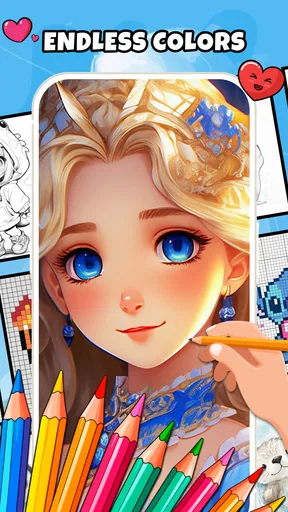
If you’re into traditional art, the classic drawing mode is where you’ll want to start. The app offers a plethora of brushes and pencils, each with customizable settings. You can adjust the thickness, opacity, and even the texture. It feels almost like you’re holding a real brush! The color palette is vast, letting you mix and match to your heart’s content. It’s like having a full set of paints without the mess.
Pixel Art Fun
Now, for those of you who love the retro vibe, the pixel art feature is an absolute gem. It’s incredibly easy to switch between classic and pixel modes. You can create your own pixel masterpieces with a grid that snaps perfectly, ensuring precision. Whether you’re designing a cute character or an intricate landscape, the pixel mode gives you that nostalgic 8-bit feel.
Features That Stand Out
What really sets this app apart are some of the little features that make a big difference. For instance, the layer functionality is a game-changer. You can create multiple layers which allows for more complex compositions. It’s like Photoshop, but way more user-friendly!
Another cool feature is the time-lapse recording. You can record your entire drawing process and share it with friends or on social media. It’s pretty satisfying to watch your artwork come to life from start to finish.
Sharing and Saving
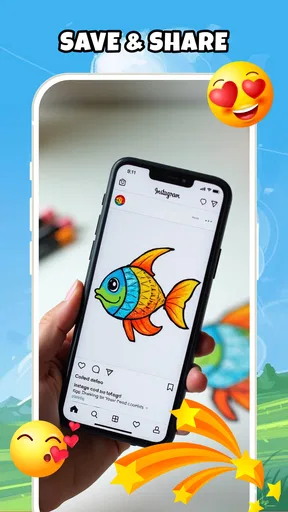
Once you’ve finished your masterpiece, the app makes it super easy to save or share your work. You can choose from various file formats, so whether you’re printing your work or posting it online, you’ve got options. Plus, the app automatically saves your progress, so you never have to worry about losing your work if you forget to hit save.
A Few Quirks
No app is perfect, right? While Draw & Paint - Classic & Pixel is fantastic, there are a couple of quirks. Occasionally, the app might lag, especially with very complex drawings. It’s not a deal-breaker, but something to be aware of if you’re working on a high-detail piece.
Also, some of the advanced brushes and tools are behind a paywall. While the free version is quite generous, serious artists might find themselves wanting to unlock the extra features for a small fee.
Making room for different abilities and settings
For readability, I would keep early sketches visually uncomplicated: a clear silhouette, a few colors, and marks with enough contrast to distinguish them. Pixel art can help when a design benefits from crisp blocks, while classic brushes are more flexible for varied strokes. Neither style automatically makes a picture easier to understand, so it is worth checking the finished image at the size where someone will actually view it.
Motor comfort is more personal. A stylus may make controlled strokes easier for some people, while finger drawing may be more convenient for others; I’d test both if the device supports the choice. Short sessions, a stable grip, and using layers to separate a rough draft from detail work can reduce the pressure to make every mark perfect. On the other hand, small controls and precise pixel placement can be tiring if fine movements are difficult, so this would not be my first choice for anyone who needs large, highly configurable controls.
There are also practical sensory and situational considerations. Drawing on a phone is convenient in a quiet moment on a commute or during a break, but a bright screen, surrounding noise, or a bumpy ride can make careful work uncomfortable. I’d use travel time for loose ideas and save precise pixel work for a steadier setting. If time-lapse sharing is part of your routine, review the recording before posting so the finished presentation matches what you want others to see.
The app is not automatically the best option for every access need or workflow. Someone who depends on a particular screen reader interaction, extensive interface customization, or a specialized assistive input method should try the controls on their own device before relying on it. Likewise, if long-form work demands dependable fine control, advanced export handling, or a desktop-scale canvas, a dedicated tablet or computer application is likely a better match.
A practical, inclusive verdict
My overall impression is that this is a welcoming way to explore drawing, especially for people who value having expressive brushes and grid-based pixel work in one place. Its approachable start, layers, and recording option give casual projects room to grow, while the limits around complex drawings, paid tools, and small-screen precision are real considerations. I’d recommend trying it for sketches, simple illustrations, and learning how pixel art feels; I’d look elsewhere for specialized accessibility controls or demanding professional production. That balance makes it a useful creative companion, provided its mobile-first style fits how you like to work.
Final Thoughts
All in all, Draw & Paint - Classic & Pixel is a delightful app for anyone looking to unleash their creativity. Its blend of classic and pixel art features makes it versatile and fun. Whether you’re doodling during a commute or crafting a digital masterpiece, this app has got you covered. So, grab your stylus or just use your fingertips, and start creating some art!
Pros
- Intuitive interface for easy navigation.
- Wide variety of brushes and tools.
- Supports layers for complex projects.
- Seamless zoom and pan functionality.
- Customizable canvas sizes.
Cons
- Limited export formats available.
- Occasional lag on older devices.
- No cloud sync for projects.
- Ads can be intrusive at times.
- Missing advanced color correction tools.
FAQs for Draw & Paint - Classic & Pixel
What features does Draw & Paint - Classic & Pixel offer?
Draw & Paint - Classic & Pixel offers a diverse range of features that cater to both traditional and pixel art enthusiasts. Users can enjoy a variety of brushes, layers, and blending modes for classic drawing, while pixel artists can use grid overlays and color palettes designed for precise pixel work. The app also supports importing and exporting images, making it versatile for different creative needs.
Is Draw & Paint - Classic & Pixel suitable for beginners?
Yes, Draw & Paint - Classic & Pixel is designed to be user-friendly for beginners while still offering advanced features for experienced artists. The intuitive interface and helpful tutorials make it easy to start creating art immediately. Beginners can explore basic tools and gradually progress to more complex features as they become more comfortable.
Does the app support multiple file formats for export?
Draw & Paint - Classic & Pixel supports a variety of file formats, allowing users to export their artwork in formats such as PNG, JPEG, and PSD. This flexibility ensures that your creations can be shared easily across different platforms and can be further edited in other software if needed.
Are there any in-app purchases or subscription fees?
While Draw & Paint - Classic & Pixel is free to download, it does offer in-app purchases for additional features and tools. These may include premium brush sets, advanced layer options, and ad-free experiences. However, the core functionality of the app remains accessible without payment, providing a robust experience for all users.
Can I use Draw & Paint - Classic & Pixel offline?
Yes, you can use Draw & Paint - Classic & Pixel offline. The app allows you to create and edit your artwork without an internet connection, making it convenient for use on the go. However, some features, like cloud saving or updates, may require an internet connection to function.


